
These five steps get you driving with RideshareIQ. Each one links to its full guide if you want more detail later.
1. Install and allow the basics
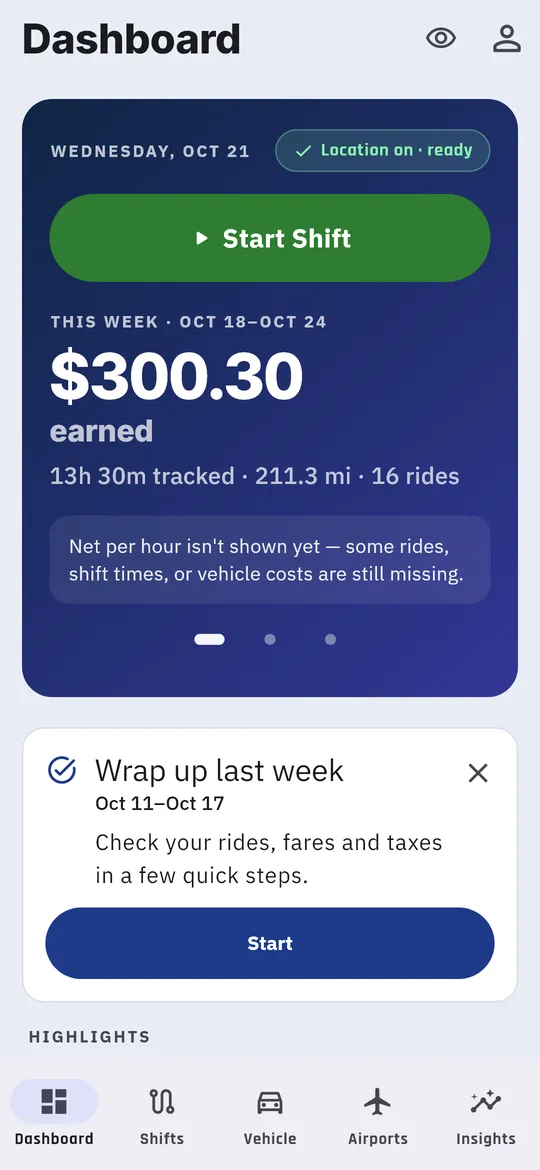
Install RideshareIQ (TestFlight on iPhone, the test build you were sent on Android). When it asks, allow notifications, and set location to Allow all the time (on iPhone, Always). The app needs your location in the background to measure your miles while Uber or Lyft is on screen.
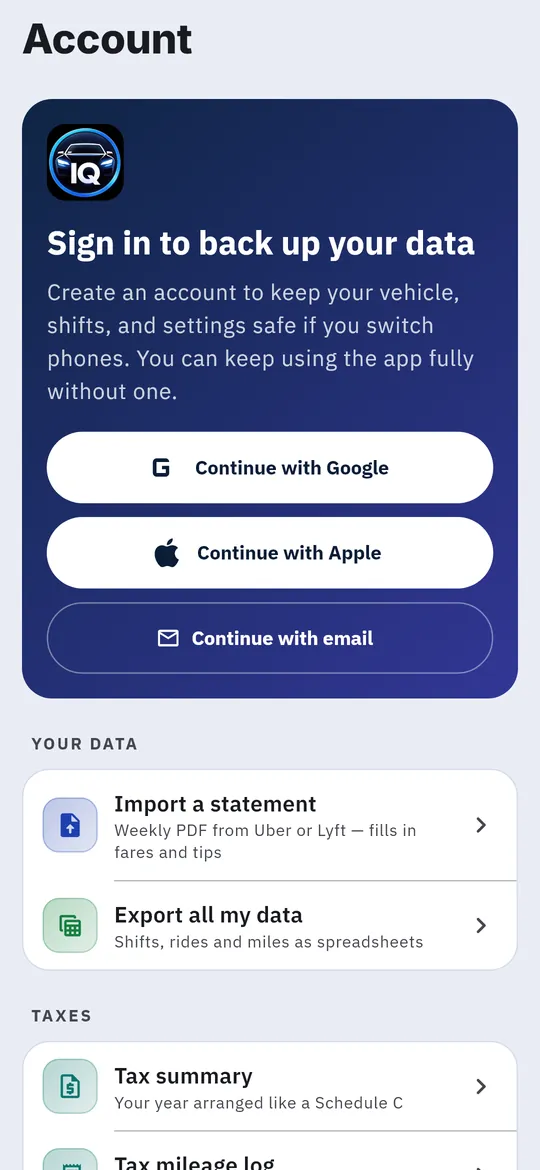
Signing in is optional, but it backs up your data. Tap the person icon, then choose Google, Apple or email. More on getting started
2. Enter your car
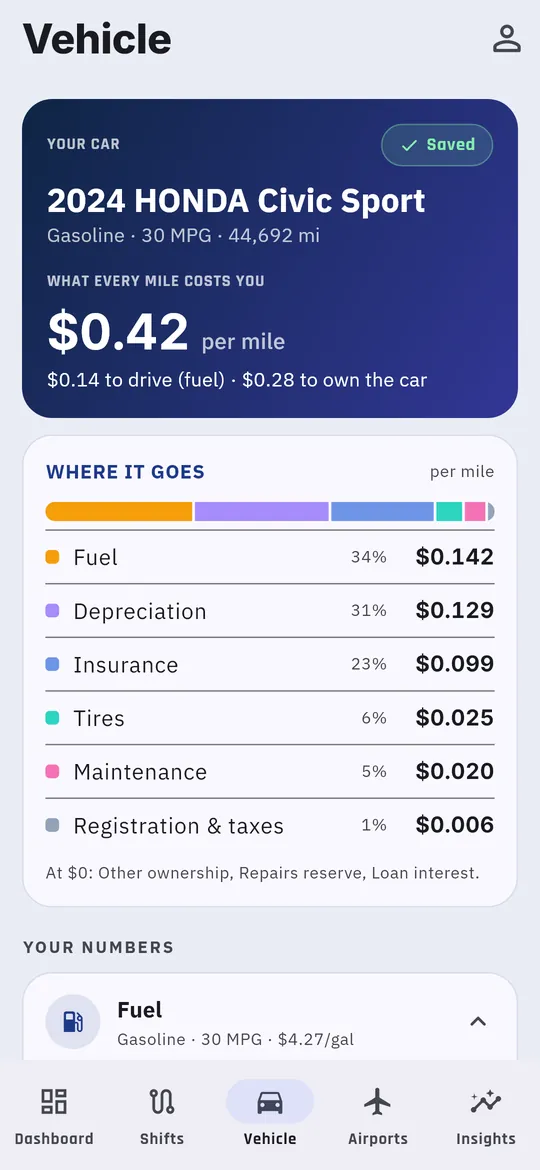
Open the Vehicle tab. Look up your car by VIN, or tap Load example and change it to match yours. Then tap Save Vehicle. Your car’s costs are what turn miles into real profit. More on setting up your car
3. Start a shift when you go online
Tap Start Shift on the Dashboard as you go online in Uber or Lyft. Miles record in the background from then on.
On Android, turn on the floating shift button when the Shifts tab offers it. It lets you tap the ride steps without leaving Uber or Lyft. More on the floating button and voice
4. Tap the ride buttons as you drive
For each trip, tap:
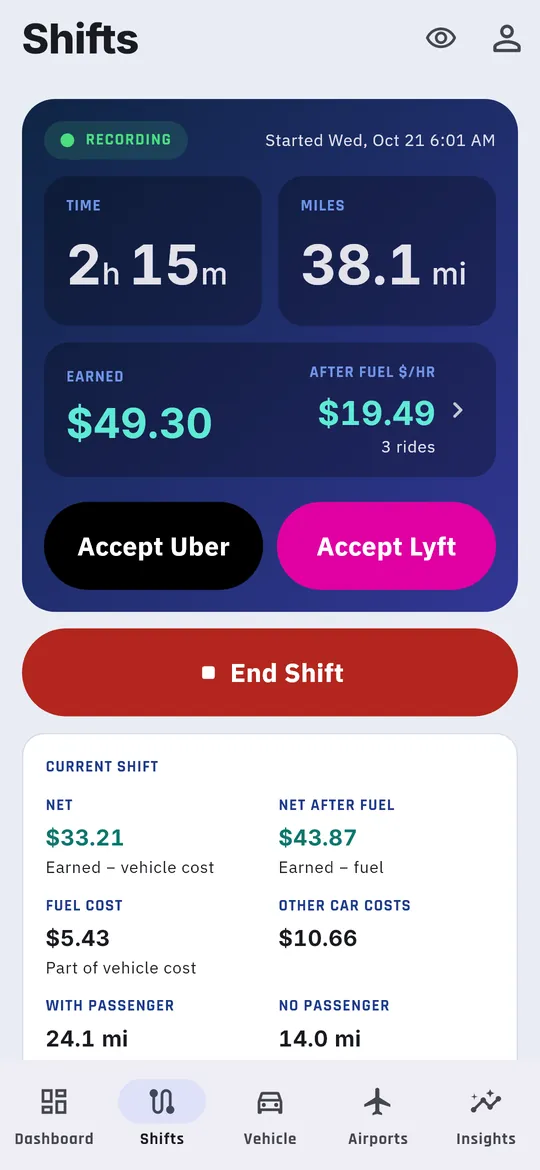
- Accept Uber or Accept Lyft when you accept it.
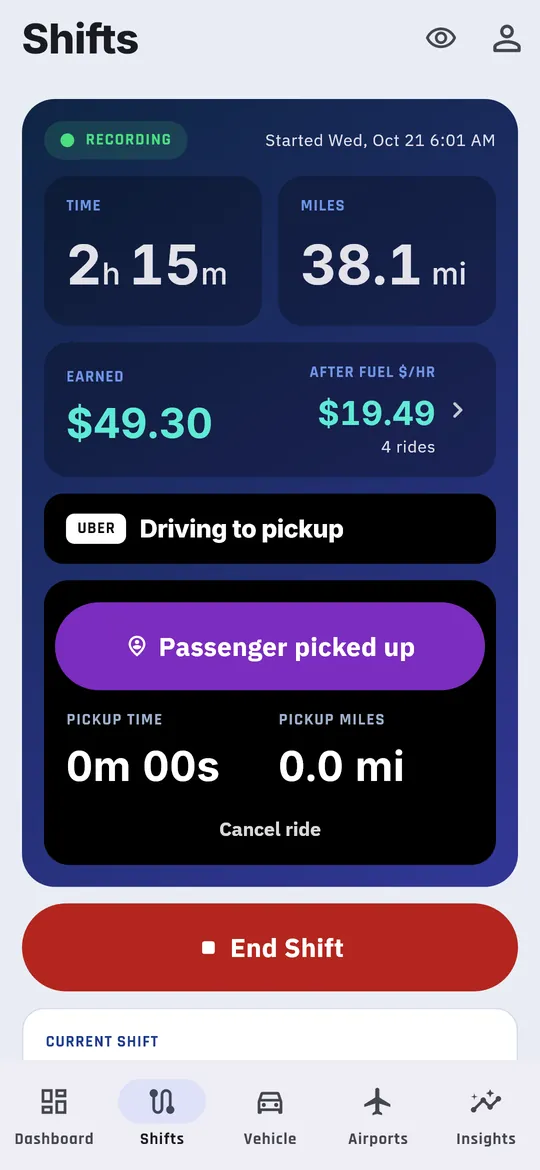
- Passenger picked up when the rider gets in.
- Complete ride at drop-off.
These taps split your miles into empty, pickup and passenger miles. When you’re done for the day, tap End Shift on the Shifts tab. More on running a shift
5. Add your fares once a week
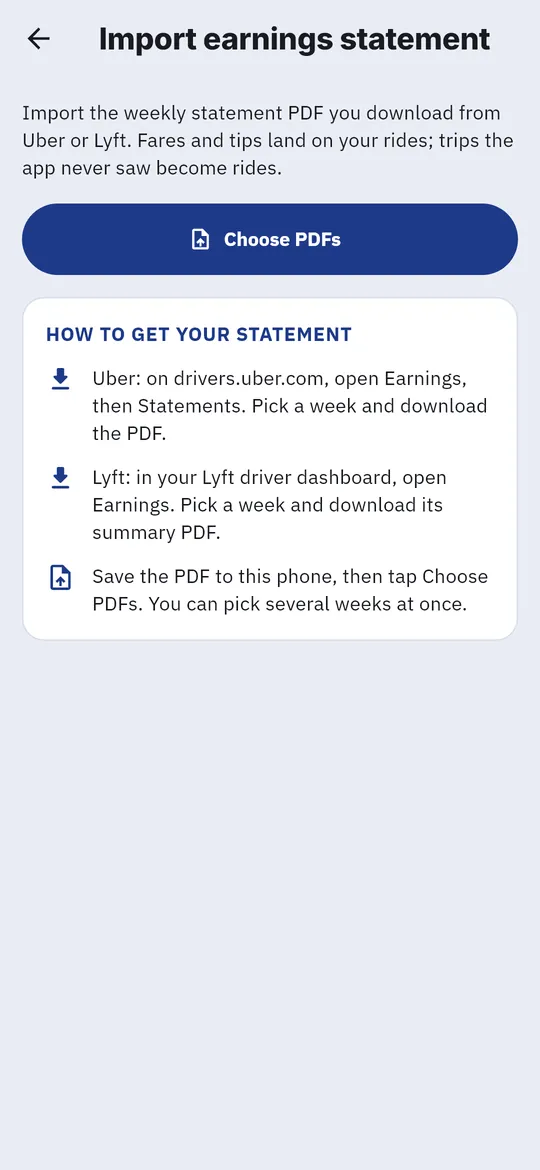
You don’t type fares while driving. Once a week, download your Uber and Lyft statement PDFs, then tap the person icon → Import a statement. Your fares and tips fill in, and your net profit per hour appears. More on adding fares
That’s it
Next, while you’re parked:
- Check the Dashboard’s Take offers paying at least card before accepting an offer. See Use your accept line.
- Look at the Airports tab before heading out. See Read the airport outlook.
- Snap receipts for tolls, parking and car washes under Expenses. See Add an expense.