
The Airports tab tells you when the next rush of arriving passengers (a “wave”) lands, so you can be in the queue before it hits.
Read the outlook
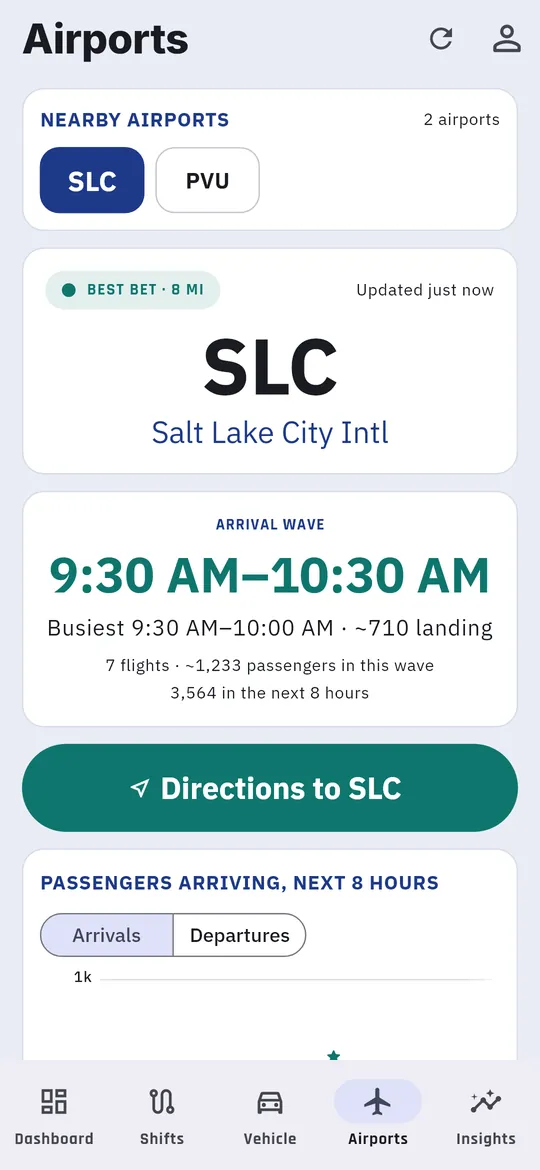
- Pick an airport under Nearby airports. The app remembers your choice. Best bet marks the airport with the strongest next wave, weighted by your own average fare there once you have enough airport rides.
- The airport card shows the Next wave: its time window, flights and about how many passengers. Best pickup window is the busiest half hour.
- Tap Directions to the airport to open navigation. Choose Google Maps or Waze under Account → Directions app.
- The Passengers arriving, next 8 hours chart shows each half hour, with a star on the peak. Switch to Departures to see when travelers will need rides to the airport.
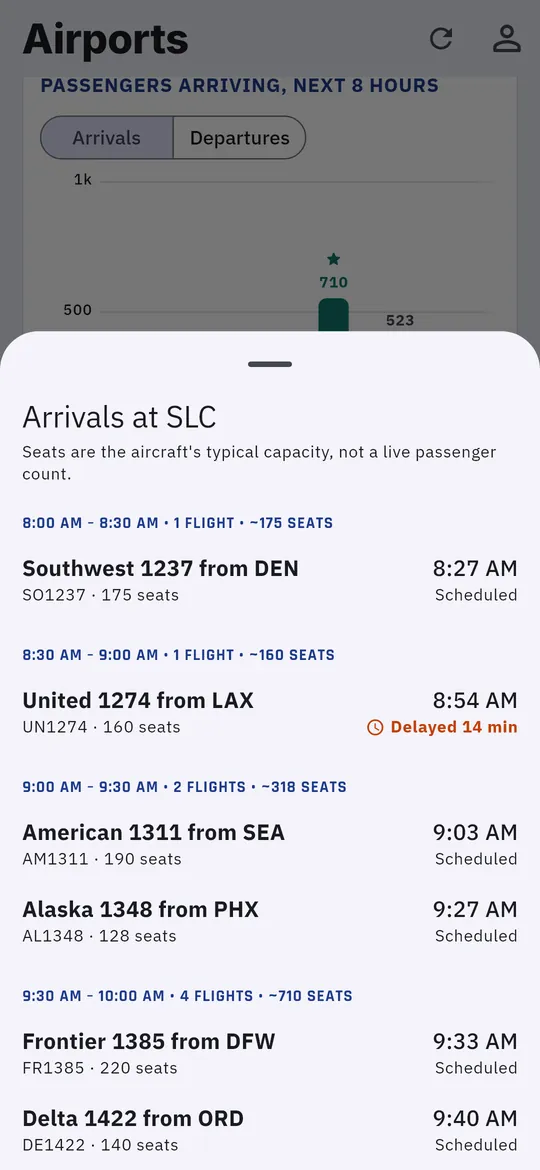
- Tap Flight details for the flight-by-flight list, including delays. Seat counts are each aircraft’s typical capacity, not a live passenger count.
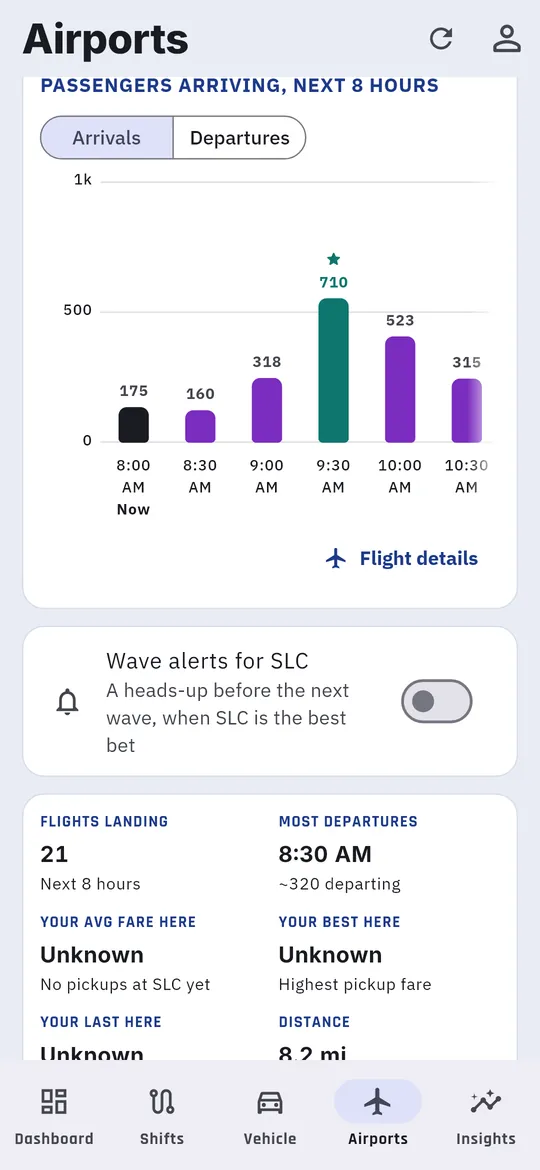
Below the chart, The play sums up the recommendation, with tiles for flights landing, the busiest departure time, your average fare at that airport, and the distance.
Tap the refresh icon at the top to update your location and the outlook.
Get an alert before a wave
- Turn on Wave alerts for an airport.
- If you like, limit alerts to Only during a shift, or to the Biggest wave only.
- When an alert arrives, tap On my way, Remind 5 min or Remind 15 min.
Let the Dashboard time it
During a shift, the Dashboard’s Next move card does the timing for you, for example “Leave for SLC by 9:05 PM” or “Head to SLC now.”