
The Shifts tab keeps every finished shift under Completed shifts, below the live shift card.
Browse your history
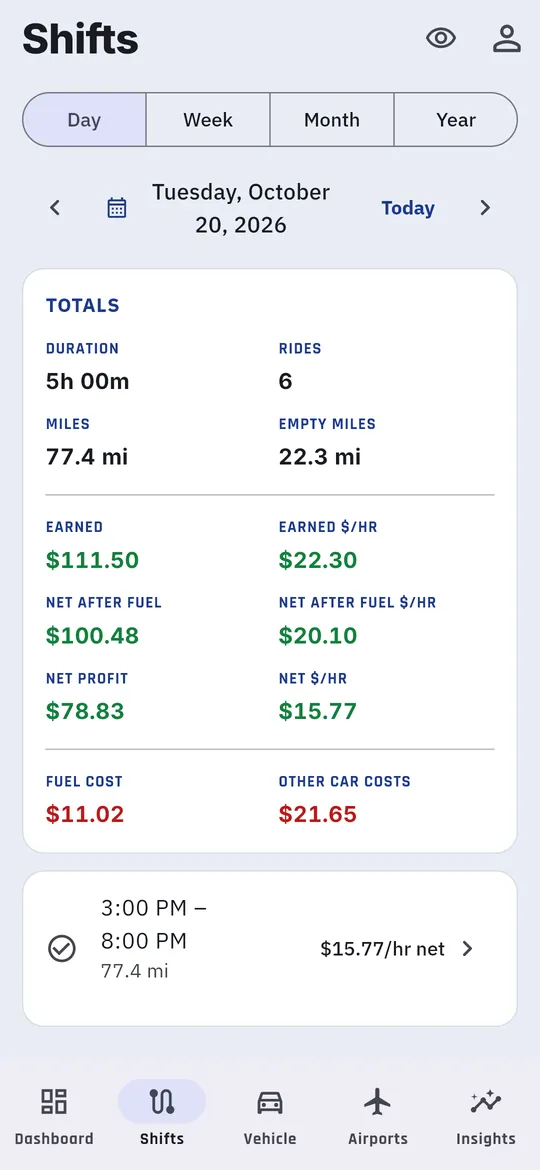
- Choose Day, Week, Month or Year. It opens on today each time you open the app.
- Use the arrows to step back or forward, or tap the date to jump to one.
- The totals card at the top adds up the period in three parts:
- The driving: duration and rides, miles and miles with no passenger.
- What it earned, in green: Earned and Earned $/hr, Net after fuel and Net after fuel $/hr, and Net profit and Net $/hr after every car cost.
- What it cost, in red: Fuel cost and Other car costs.
- Shifts are grouped by day. Tap a day to expand it, then tap a shift to open it.
Shift details
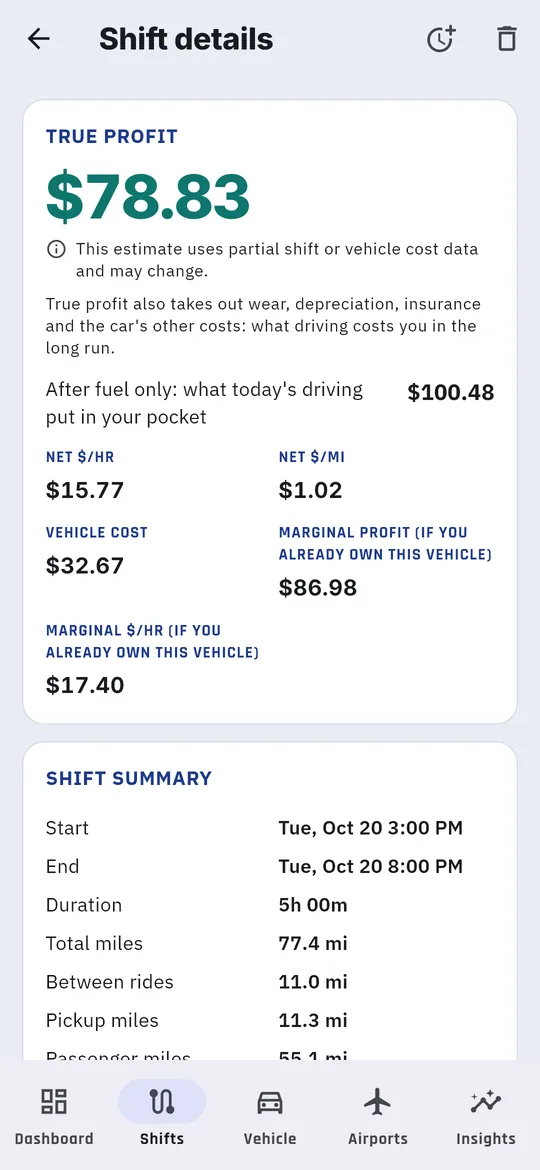
- Shift summary: start, end and duration; total, empty, pickup and passenger miles; and the time spent with and without a passenger.
- True profit: net per hour and net per mile after your car’s costs.
- Recorded route: the GPS track on a map, with where each ride picked up and dropped off.
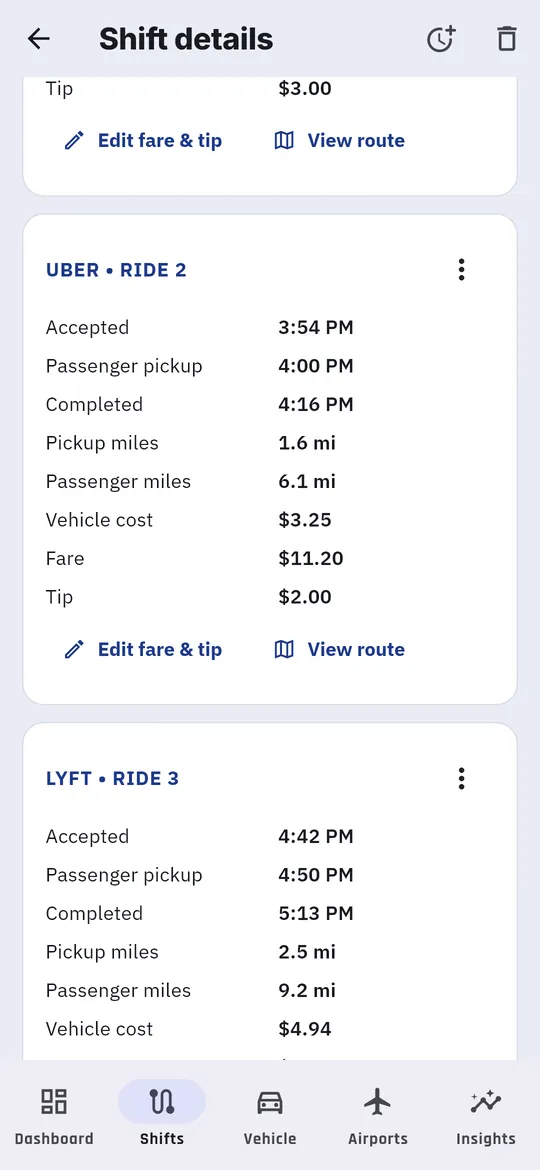
- Rides: each ride’s times, miles, car cost, fare and tip. Tap Edit fare & tip, View route or Delete route.
To delete a whole shift, tap the trash icon at the top and confirm Delete this shift?