
Net profit and net per hour stay Pending until every ride has a fare. There are three ways to fill them in. Importing your statement is the fastest.
Import your weekly statement
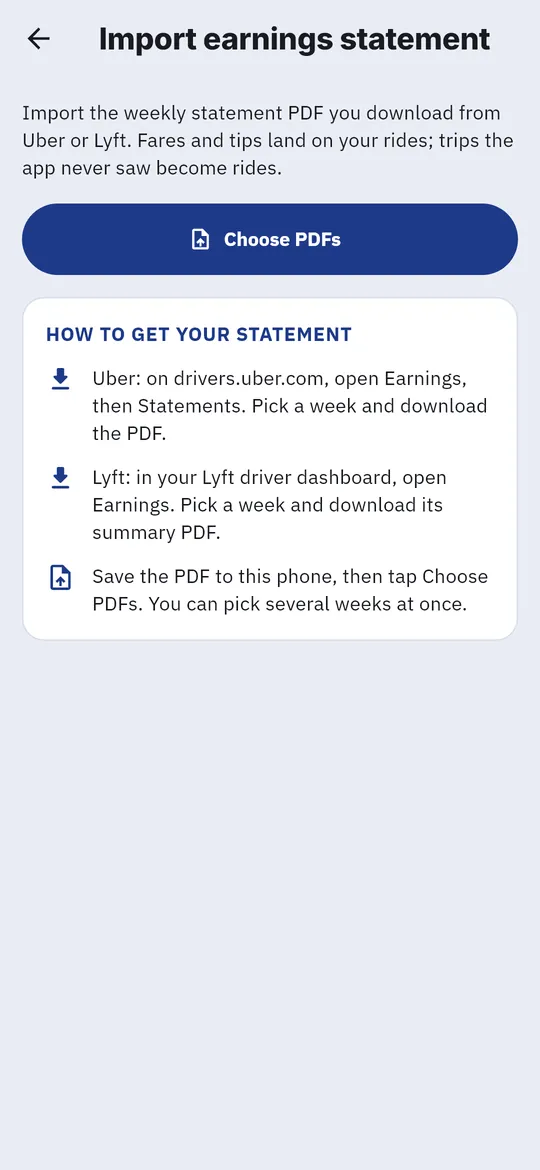
- Download the weekly statement PDF from the Uber or Lyft driver app or website.
- In RideshareIQ, tap the person icon, then Import a statement.
- Tap Choose PDFs and pick one or more statements. Screenshots and scanned images aren’t accepted.
- Check the preview (the week, trips, fares and tips), then tap Import or Import all.
- If a trip could match more than one ride you recorded, pick Your ride at the right time, None of these, add it as a new ride, or Decide later.
Fares and tips land on the rides you recorded. Trips the app never saw, such as when you forgot to start a shift, are added as new rides without miles.
On Android you can also share a statement PDF straight to RideshareIQ from your email or files app.
Walk through the missing ones
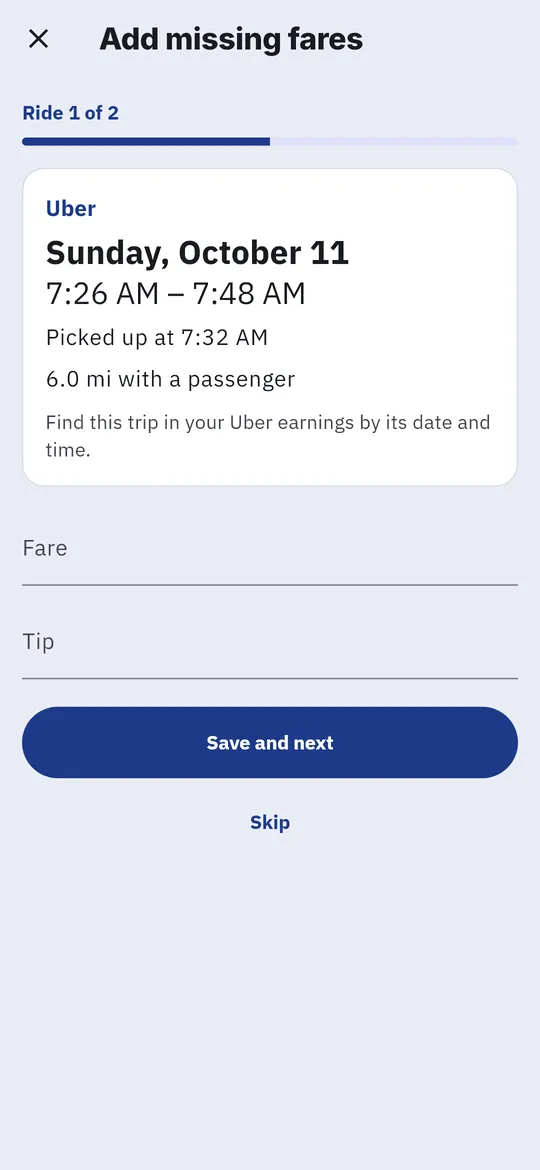
- Wherever a figure reads Pending or 2 rides need a fare (on the Dashboard, the live shift card or a past shift), tap it, or tap Add fares. Add missing fares opens. Tap Start.
- Each ride shows its platform, date, time and miles with a passenger. Find the same trip in your Uber or Lyft earnings.
- Enter the Fare, and the Tip if there was one. Tap Save and next, or Skip if you can’t find it.
- After the last ride you’ll see All done. Tap Done.

Edit one ride
Open the shift from the Shifts tab, find the ride, and tap Edit fare & tip.
Wrap up last week
Each Monday the Dashboard offers Wrap up last week. Tap Start for a few quick steps: import last week’s statements, fill in missing fares, add anything you paid for, see what to set aside for taxes, and check your car costs. Tap Skip this week if you’d rather not.